Business card scanner
Scan a paper card. Keep the person.
Point your phone at a business card and Cardiffy reads the name, title, company, email, phone, website and address. It happens on your phone, it’s free, and every card lands in your contacts Wallet.
In Cardiffy for iPhone (iOS 17 or later) and Android (8.0 or later).
How it works
Step 1
Point the camera
Open the scanner from the Card tab. The same camera reads QR codes and paper cards, or you can choose photos of cards from your library.
Step 2
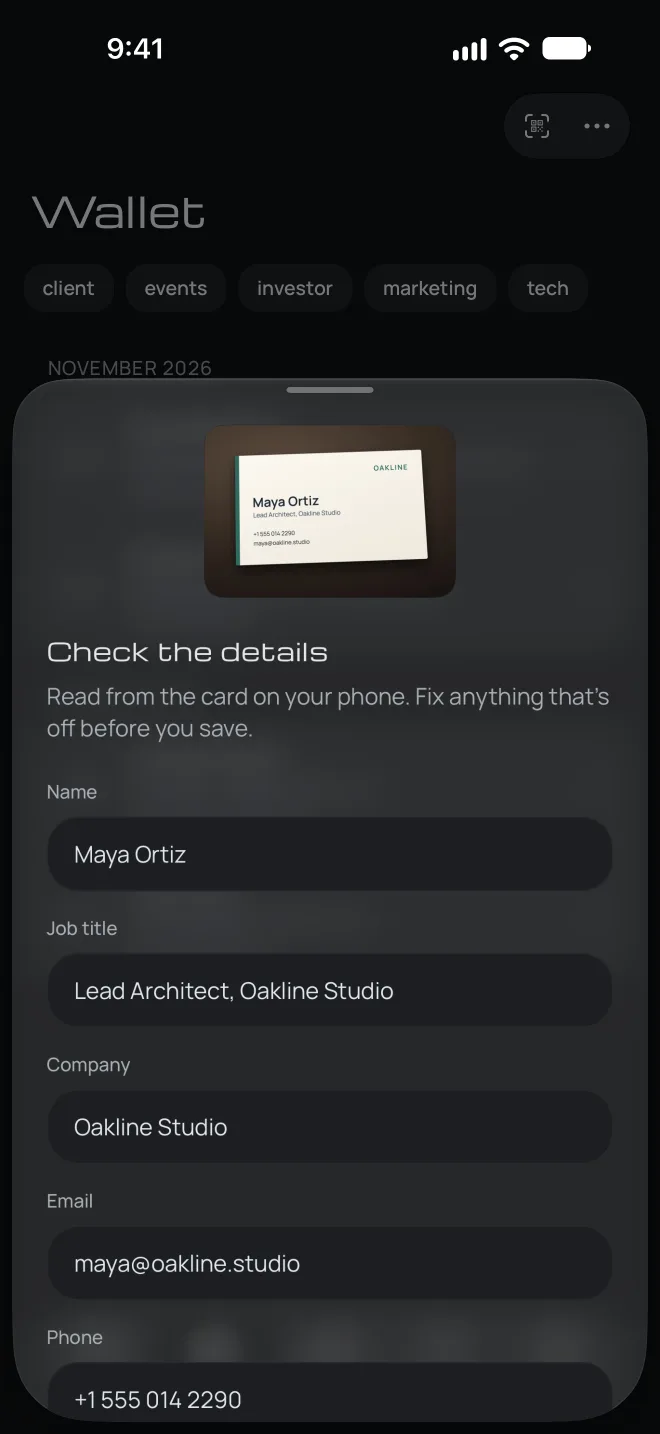
Check the details
The name, job title, company, email, phone, website and address are filled in for you. Fix anything that’s off before you save.
Step 3
Keep them in your Wallet
Add where you met, a note and tags, and set a follow-up reminder. Export your whole Wallet as a spreadsheet (CSV) or a contacts file (vCard) whenever you like.
What it does
Read on your phone
The card is read on the phone itself, by Apple’s text recognition on iPhone and Google’s on Android. The photo isn’t sent to us to be read.
Free, with no scan limit
Scan as many cards as you like. There’s no per-scan fee and no monthly scan allowance.
Works offline
Reading a card needs no signal, so it works in a basement hall or on a plane. On Android, the first scan needs a connection once.
A stack in one go
Scan a stack of cards opens your phone’s document camera, which finds and straightens each card. You check them one by one.
From your photos
Took photos of cards at an event? Choose up to 10 at a time and they’re read the same way.
QR codes too
Point at someone’s Cardiffy code or a contact QR code and the same camera opens it.
Your contacts stay yours
Cards are read on your phone. If you keep a card’s photo with the contact, it’s stored in a private folder that only your account can open, and it’s deleted when you remove the photo or the contact. Your Wallet is never shared or sold.
Questions
Is the business card scanner free?
Yes. Scanning has no limit and no fee. Your Wallet holds 50 contacts on the free plan. VIP, bought in the app for $39.99 a year, $4.99 a week or $79.99 once (US prices), removes that limit and adds Insights, more card styles and Event mode.
Does it work without an internet connection?
Reading the card does: it happens on your phone. On Android, the first scan needs a connection once, to set up the reader. Saving the contact to your Wallet needs a connection.
Is the photo of the card uploaded?
Not to read it. The text is read on your phone. If you choose to keep the card’s photo with the contact, it’s stored in a private folder only your account can open.
Can I scan several cards at once?
Yes. Scan a stack of cards uses your phone’s document camera to take each card in turn, or you can choose up to 10 photos from your library. Then you check each card before it’s saved.
Which languages can it read?
English on iPhone and Android. On iPhones whose text recognition supports it, Arabic too, which suits cards printed in both. Names and numbers are read as printed.
Is there an Android app?
Yes. Cardiffy is on Google Play for Android 8.0 or later, and on the App Store for iPhone (iOS 17 or later). The scanner is free and has no limit on both.
Get the scanner
Download Cardiffy, make your own card in a few minutes, and scan the next card you’re handed.